
Native Ads
Native ads are a special type of ad which will adopt to the look and feel of the website and context it is shown in. You can build native ads in a few simple steps. A native ad usually contains an image, your logo, a headline, text and a link to your website or any other location on the internet.
You can add creatives directly from the Wizard or under Campaign details > Creatives.
-
Select + New Creative
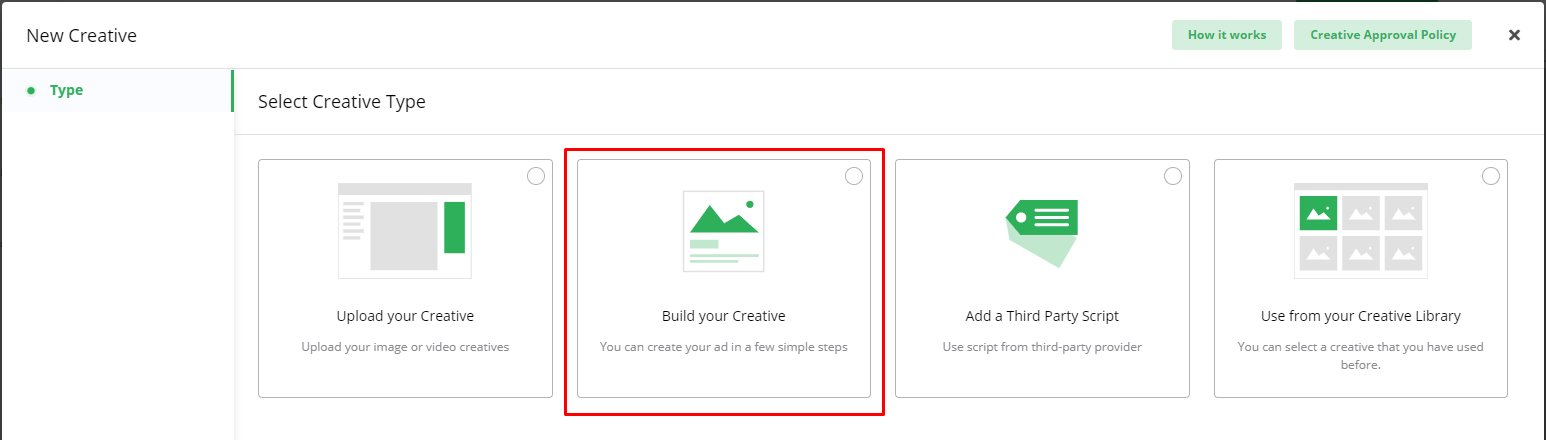
-
Select Build your Creative.
-
Select the Format / Size you want.
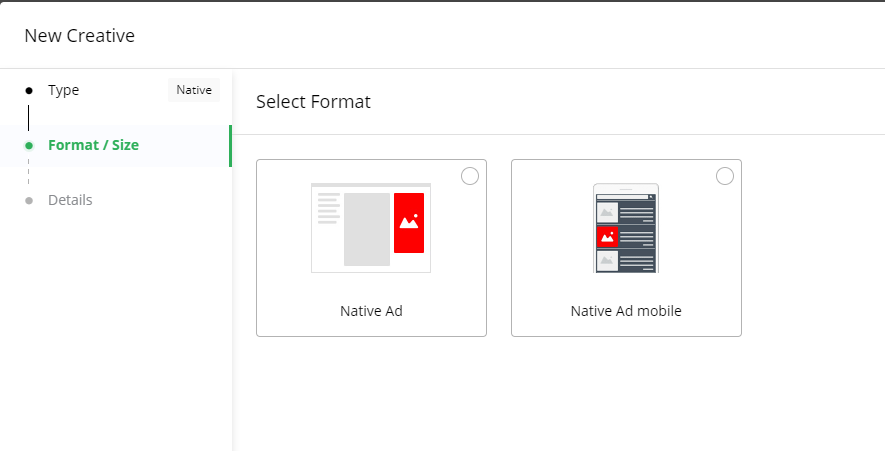
If the ad format you are looking for is not available, check the initial Campaign setup step in the Wizard to see which formats are available.
-
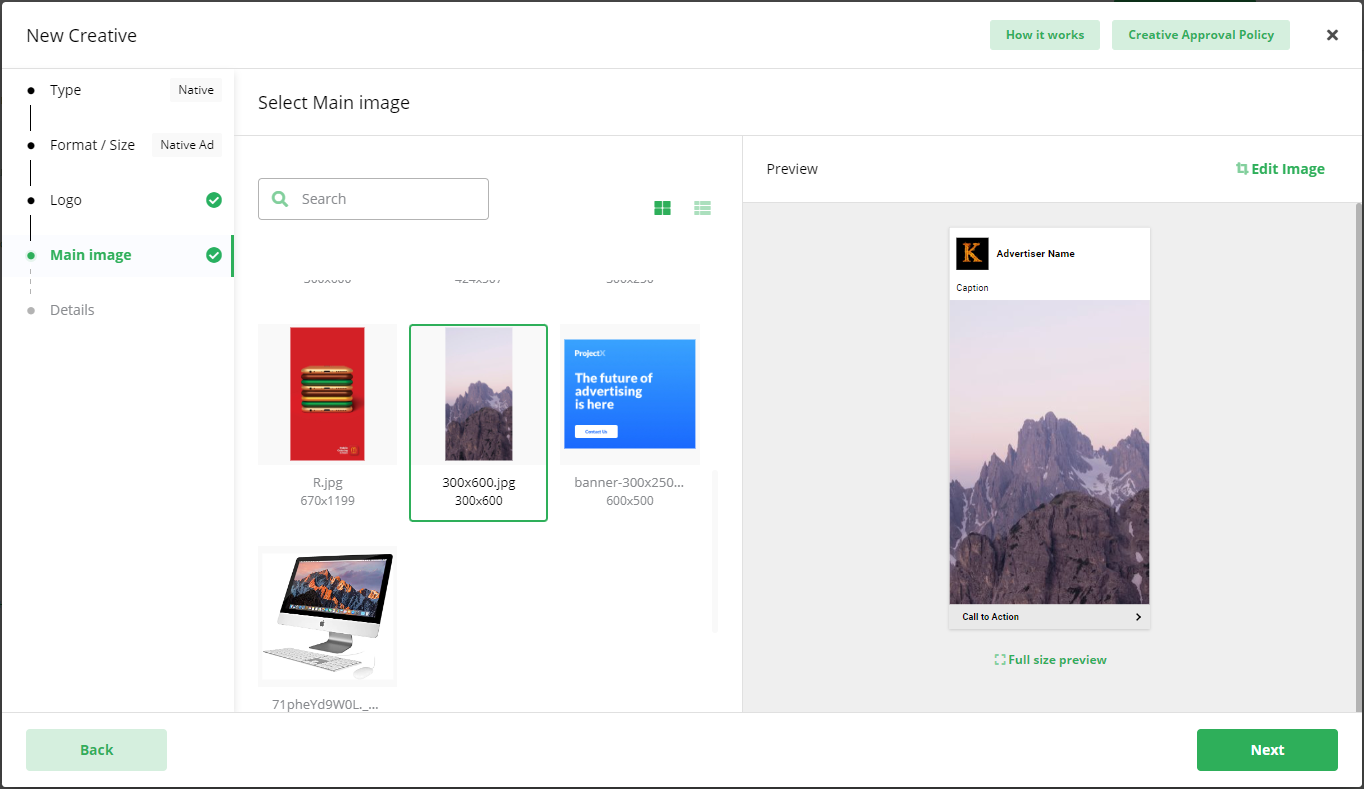
Select your logo and main image.
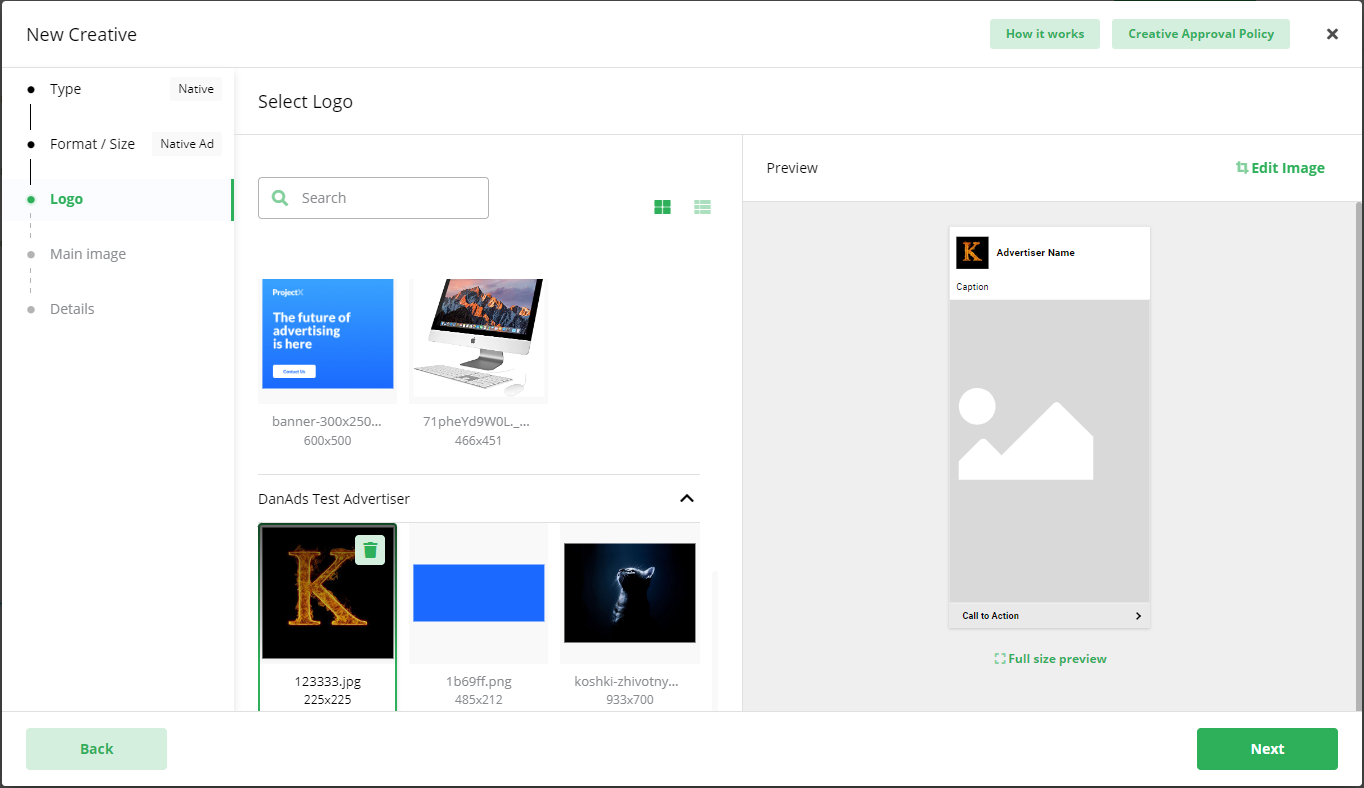
You can:
- Upload an image.
- Drag an image from your desktop.
- Select an image from previously used images. -
Under Edit image you can adjust, crop, flip, rotate and zoom the image.
The goal here is to make the image fit the size.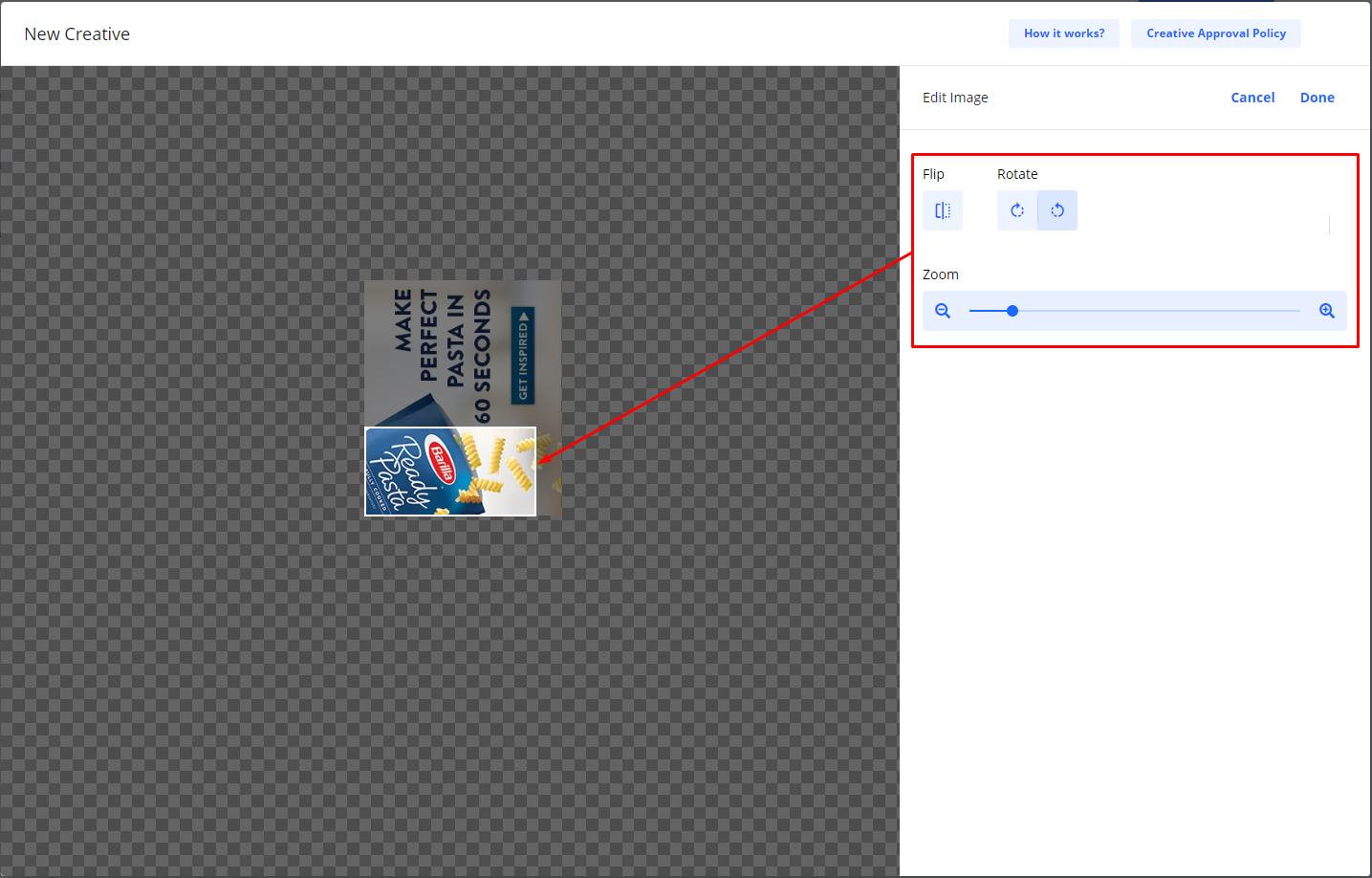
-
After you have finished editing your image, click Done.
-
Add Main and Secondary Image if available.
-
Click Next.
-
Add Details
Depending on the ad format, these will be different.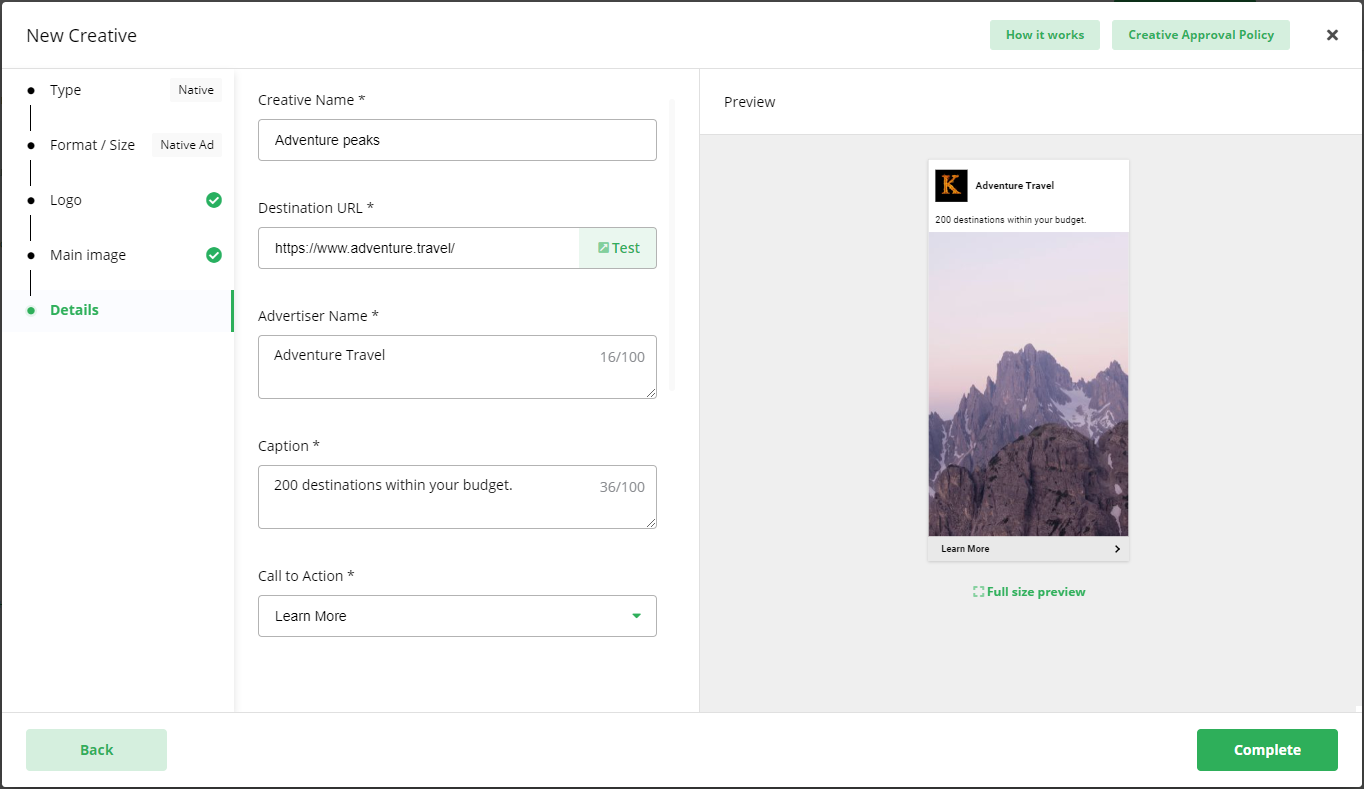
- Creative Name (only you will see this)
- Destination URL (what will happen when your ad is clicked)
- Advertiser Name
- Headline/Caption
- Body text
- Call to action text -
Scroll down.
You can add Third Party Impression and Click trackers if you need it.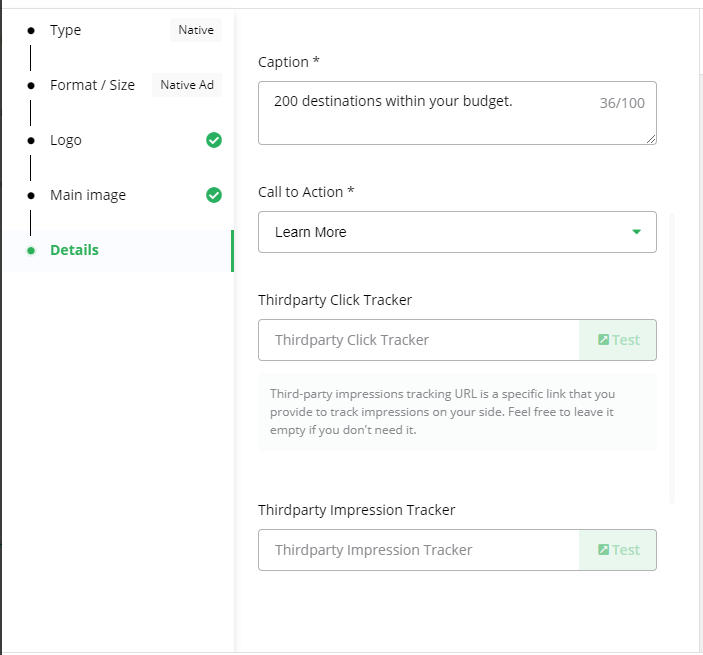
-
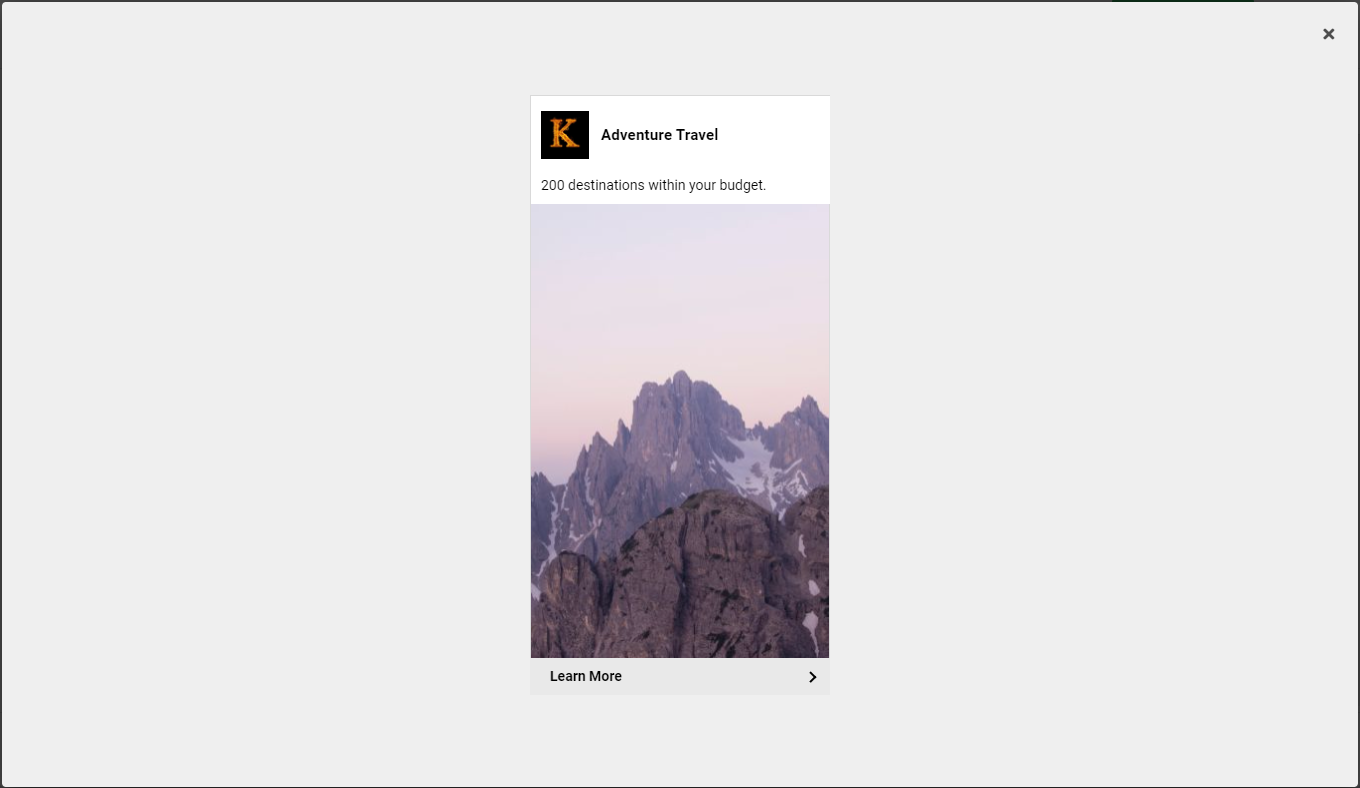
Select Full size preview to see your ad in full size.
-
Select Complete when you are done.
-
Your new native creative is added to your campaign.

Creative statuses
-
If your campaign is checked out by card or set for invoice payment, the status for new creatives will be Under Review. Creatives with this status are automatically sent for approval.
-
If you have not yet checked out the campaign, the status of new creatives will be Draft.
When you check out a campaign, Draft creatives will change status to Under Review and is sent for approval. -
You will be notified by email when a creative is approved. In case of rejection you will be notified with a reason why.